 LISA guide by SAT-CHAIN
Your AI conversations, kept and carried anywhere.
LISA turns long chats, documents and notes into compact memory you can keep, search and hand to any AI. This guide covers the three tools of the LISA Suite. One license key and one credit balance work in all three.
STEP 1Get your key
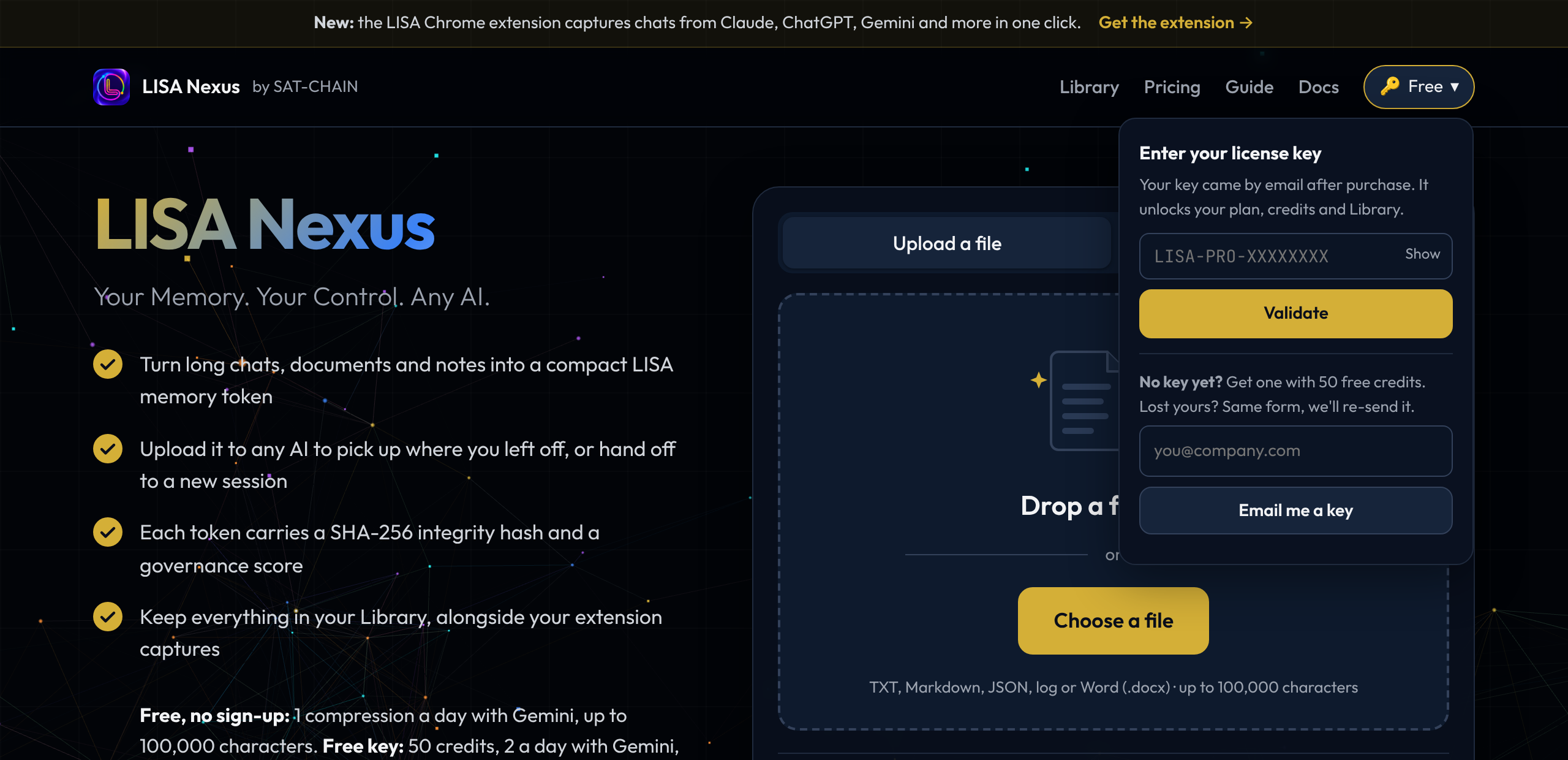
Open LISA Nexus and click the key button at the top right. No key yet? Enter your email under No key yet? and press Email me a key. Your key arrives from no-reply@sat-chain.com within a minute, with 50 free credits. Lost it? Use the same form; we send your existing key again.
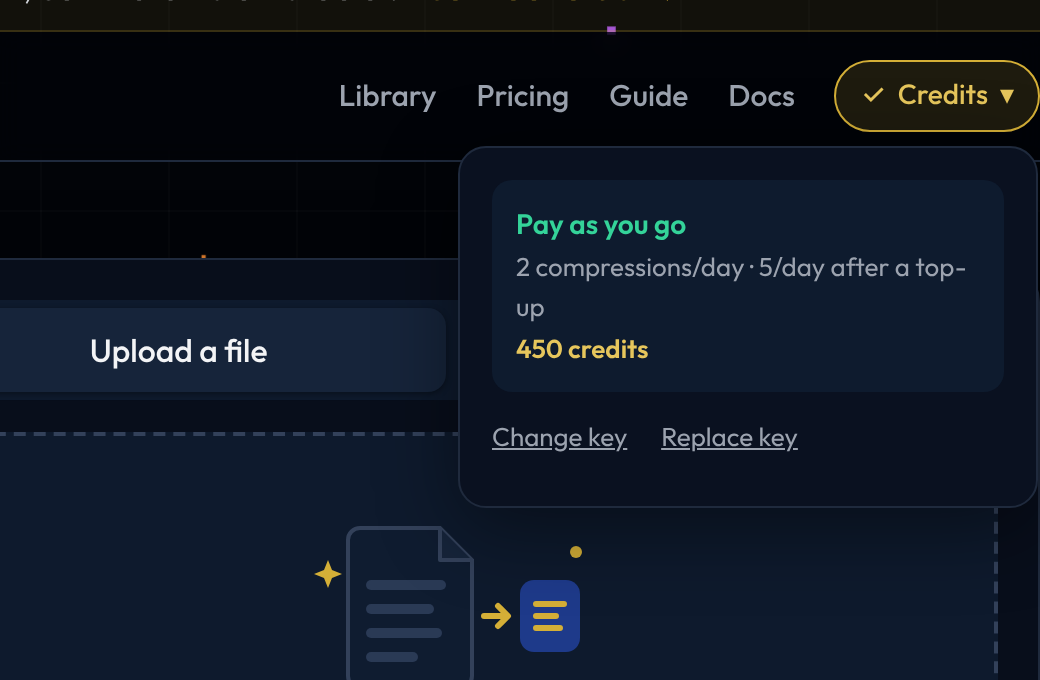
Paste the key and press Validate. The button then shows your plan and your credit balance. Buying credits or a plan (see Credits and plans) also emails you a key.
LISA Nexus
STEP 2Compress a document or conversation
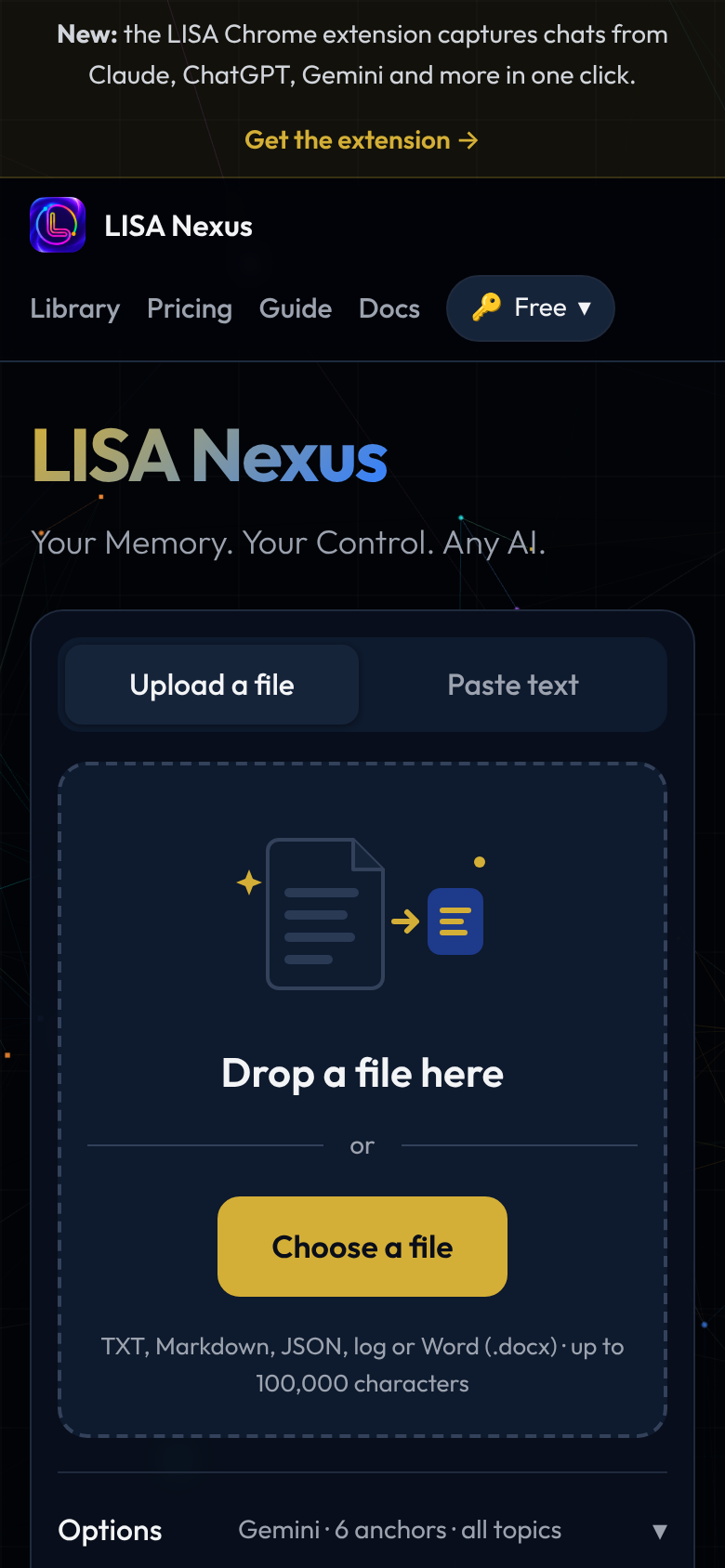
Drop a file on the box (text, Markdown, JSON, log or Word), or switch to Paste text and paste a conversation, notes or a transcript (at least 100 characters).
Open Options to choose:
- AI provider: which AI does the compression. Your text goes only to the provider you pick.
- Semantic anchors: how many key points to keep, from 4 (brief) to 12 (maximum).
- Focus: all topics, or mainly decisions, code, action items, ideas, problems, research or goals.
- Save as: the name in your Library.
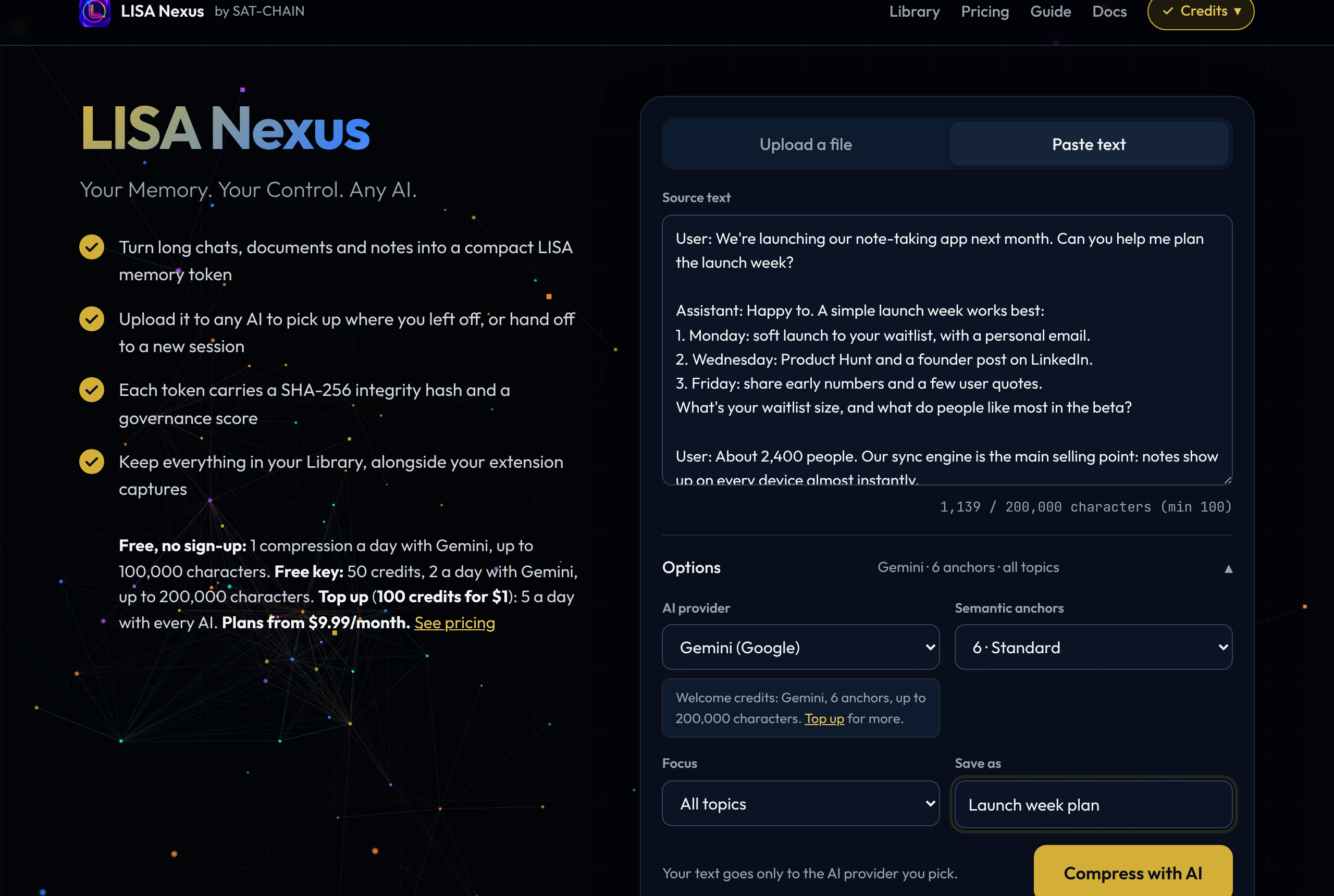
Press Compress with AI. It takes a few seconds.
STEP 3Use the result
You get a LISA token: the meaning of your text in a fraction of the size, as a small JSON file with its key points (anchors). Each token carries a SHA-256 integrity hash and a governance score that shows how much of the meaning was kept.
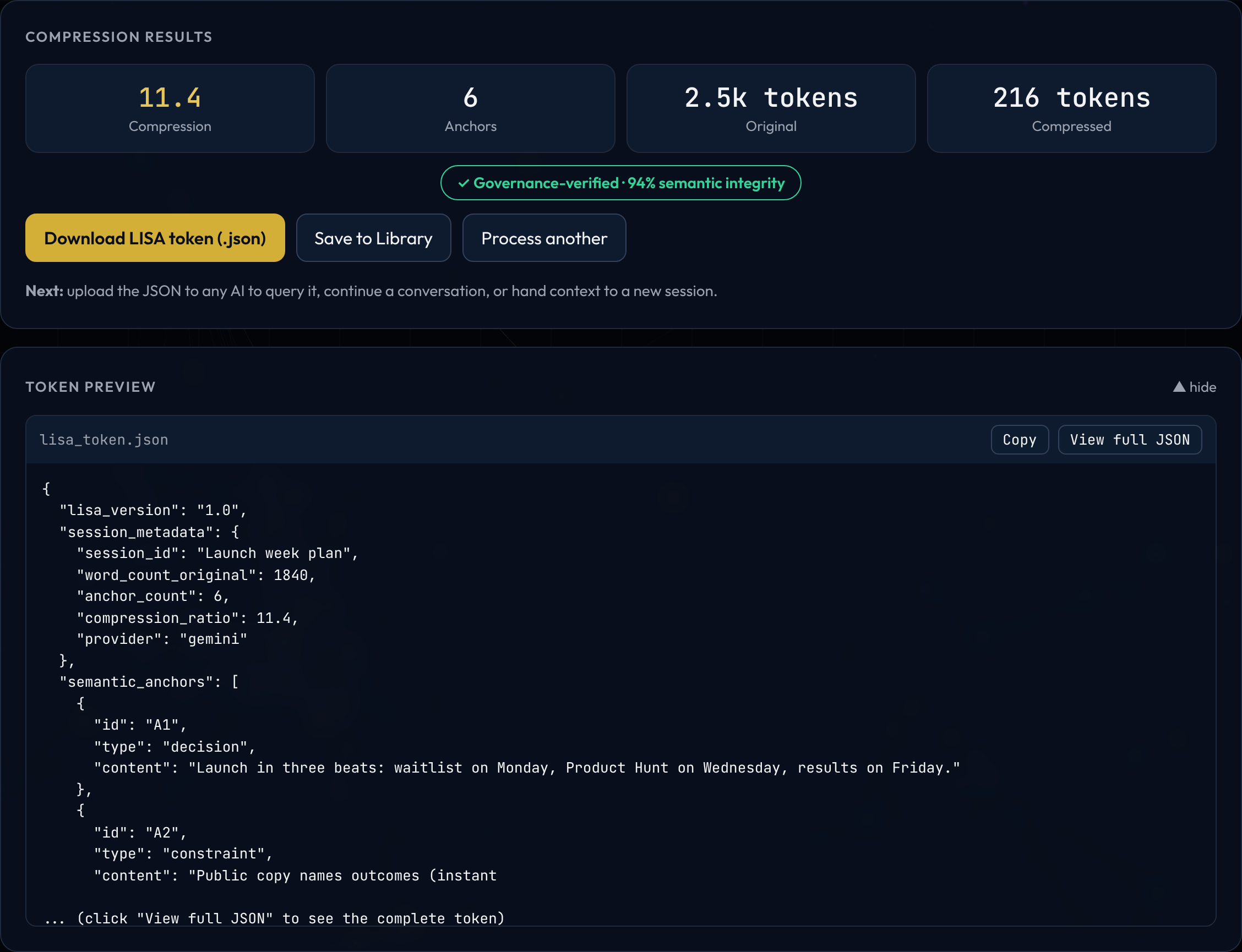
- Download LISA token: attach the
.jsonto any AI chat (Claude, ChatGPT, Gemini…) and say "continue from this". The AI picks up where you left off. - Save to Library: keep it with your key, available from any computer.
- Process another: start again.
STEP 4Your Library
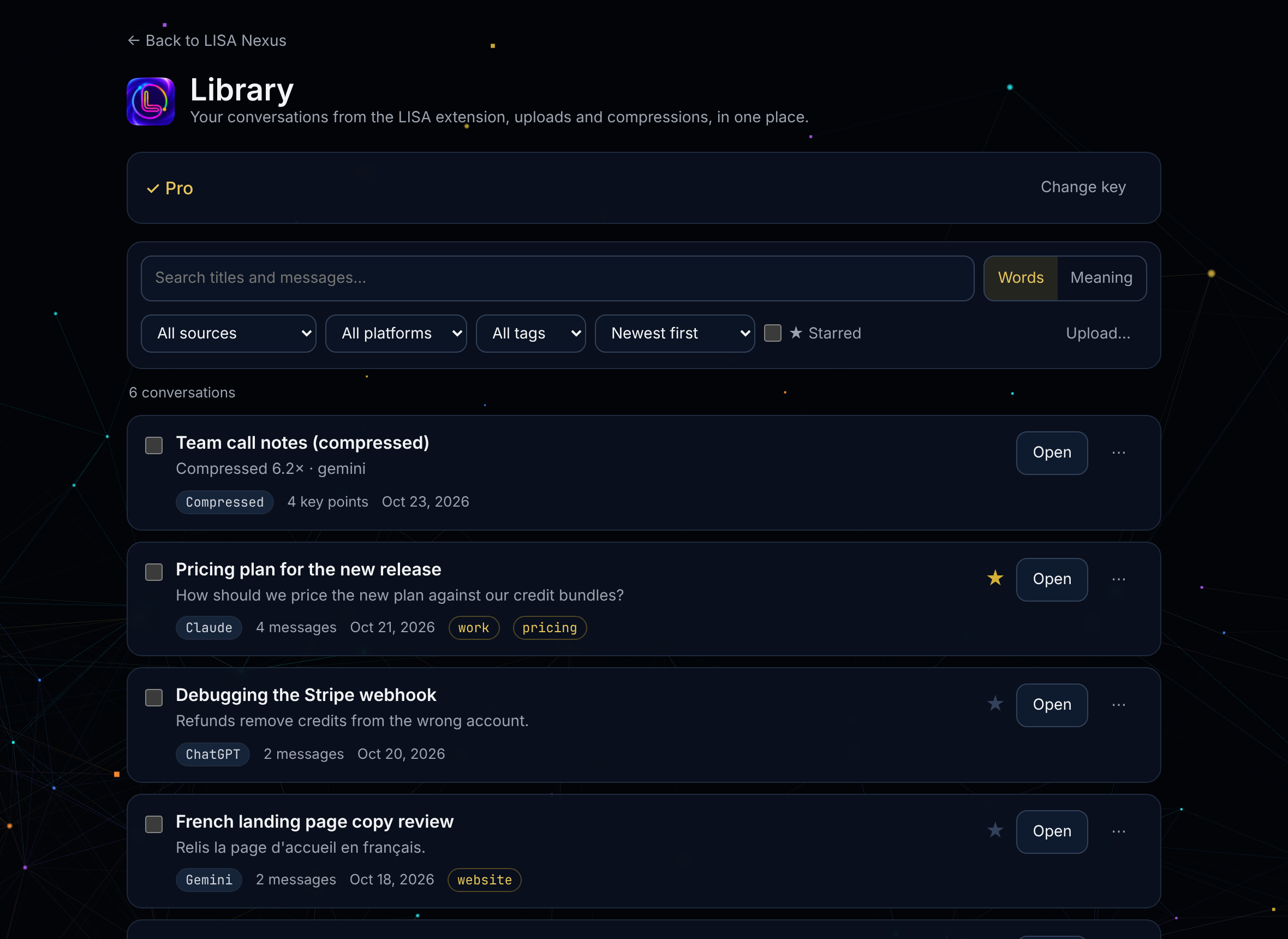
The Library keeps everything you saved, on our servers with your key: conversations you sent from the extension, files you uploaded and compressions from Nexus, in one list.
- Find: search by Words (titles and messages, in any language) or by Meaning (conversations about the same thing, even in other words). Filter by source, platform, tag or ★ starred, and sort by date, title or length.
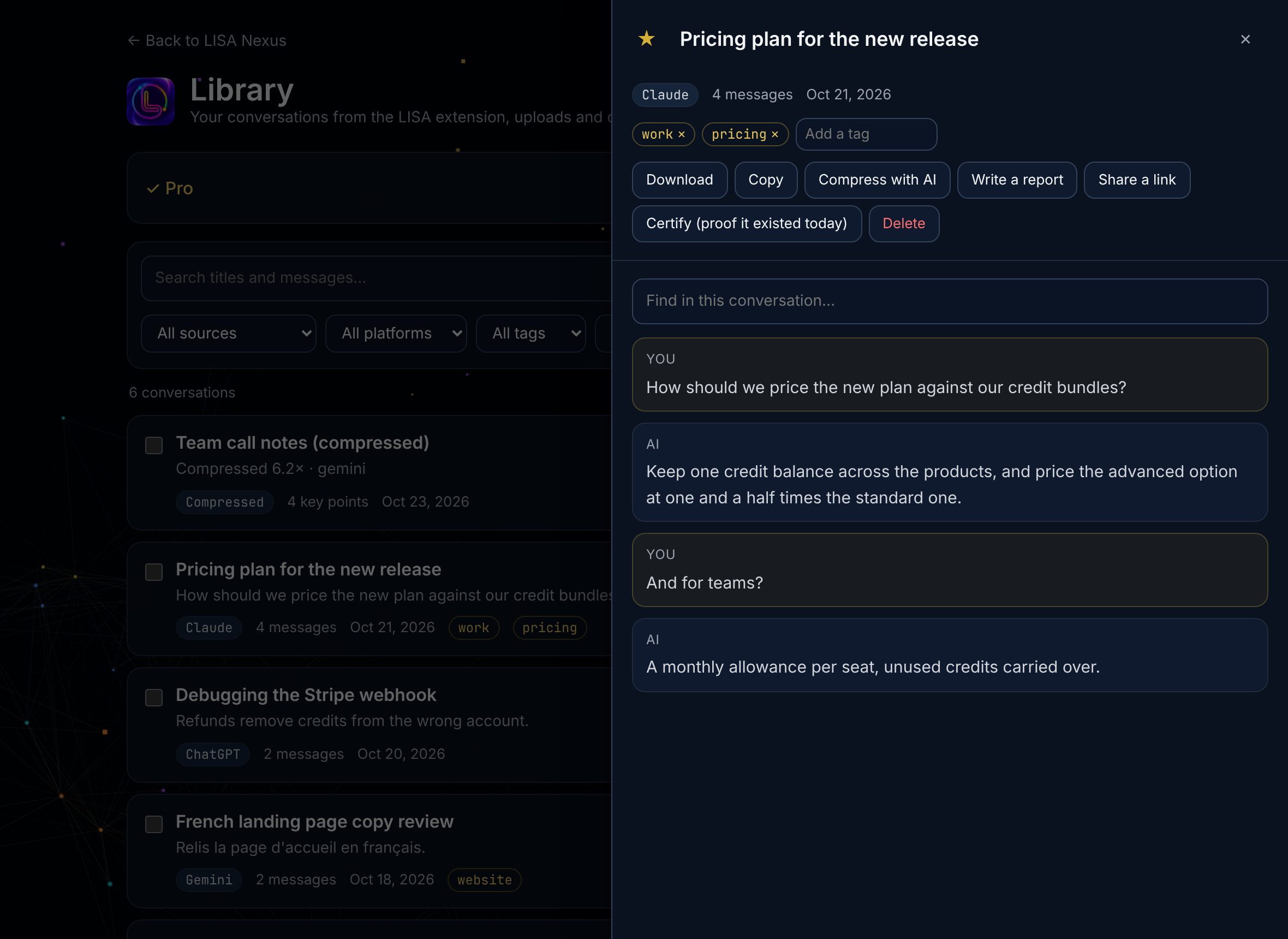
- Open a conversation to read it, find words inside it, rename it (click the title), star it or add tags.
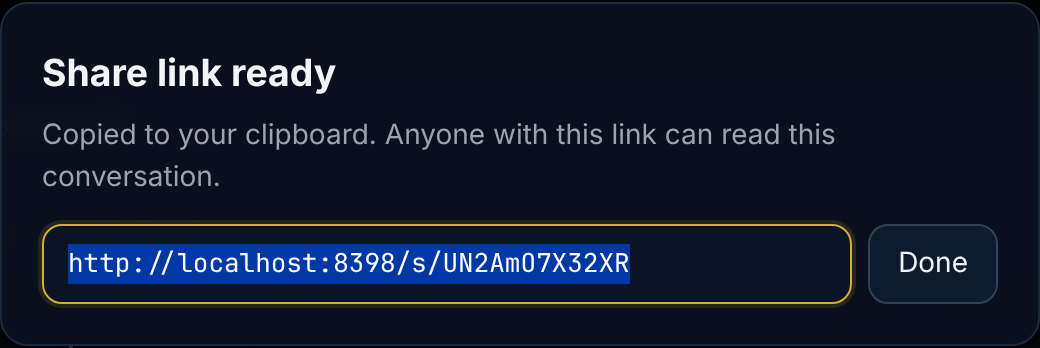
- ⋯ holds the rest: Download, Copy, Compress with AI, Write a report, Share a link, Certify (a signed proof that this exact conversation existed today) and Delete.
- Tick several to export them together (one .json or a .zip) or delete them.
- Upload… adds a LISA .json or .jsonl file.
The LISA extension
STEP 5Install and sign in
Install LISA from the Chrome Web Store and pin it to your toolbar. It works on Claude (including Claude Code), ChatGPT, Gemini, Grok, Mistral, DeepSeek, Copilot, Perplexity, HuggingChat, Meta AI and Poe.
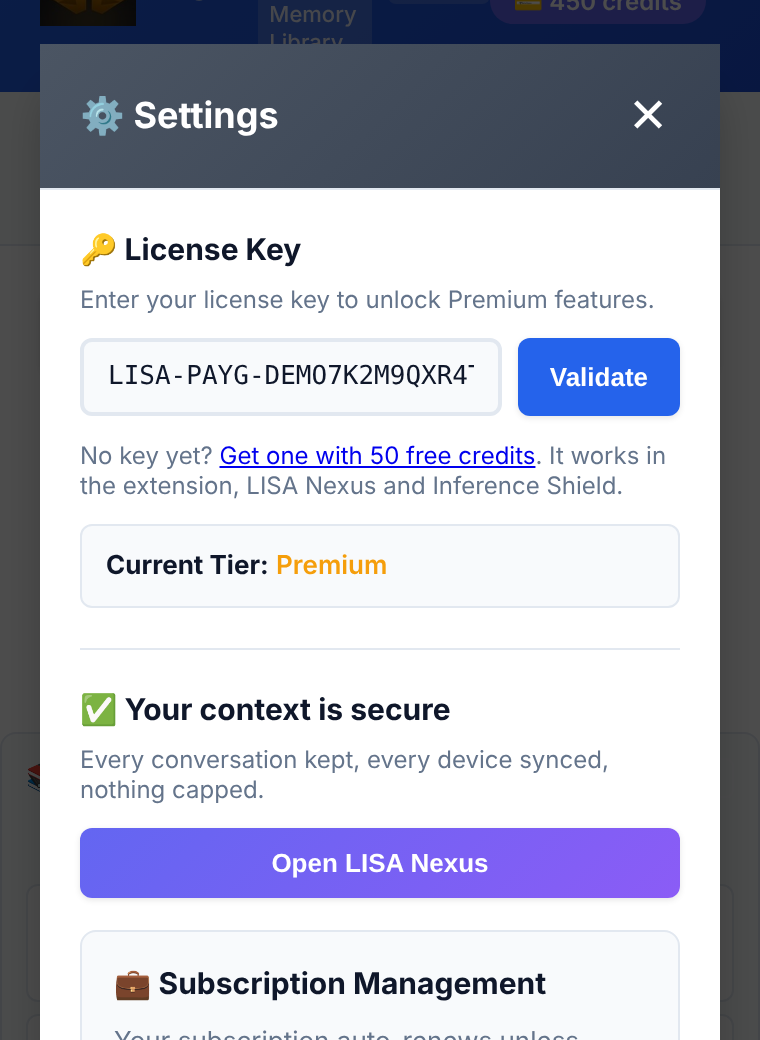
Click the LISA icon, then ⚙ Settings (top right of the popup). Paste your key under License Key and press Validate. No key yet? Get one with 50 free credits takes you to the free-key form.
STEP 6The floating button
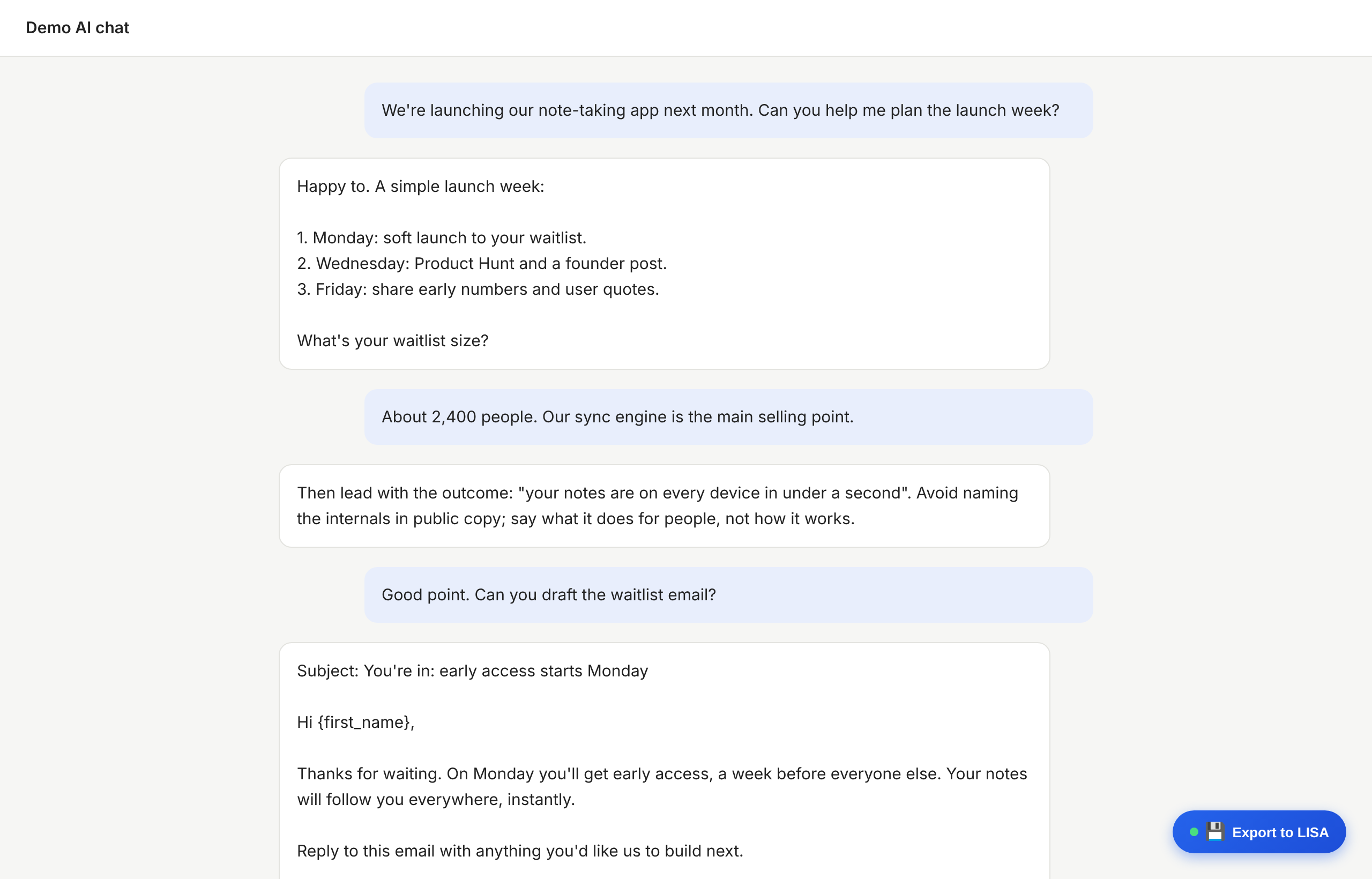
On any supported AI chat, LISA adds an Export to LISA button at the bottom right. The dot on it is the conversation's health: green while the AI keeps up, then yellow and red as a long chat starts to strain its memory.
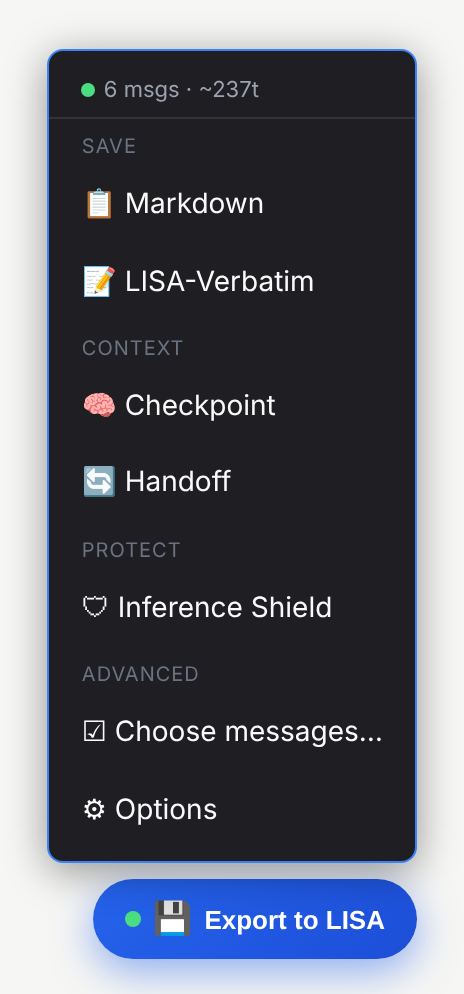
| Item | What it does |
|---|---|
| 📋 Markdown | Saves the chat as readable text in your library |
| 📝 LISA-Verbatim | Saves every word with integrity hashes: the best format to continue in another AI |
| 🧠 Checkpoint | Copies a prompt that asks the AI to sum up where you are. Paste it, send it; LISA keeps the answer |
| 🔄 Handoff | Moves the conversation to a fresh chat (step 7) |
| 🛡 Inference Shield | Checks the chat before you share it (step 10) |
The header shows the message count and an estimate of the tokens used, so you can see a long chat growing.
STEP 7Hand off to another AI
Long chats get slow and forgetful. Handoff opens a fresh chat, on the same AI or another one, and gives it the conversation so far. Tip: run Checkpoint first; the handoff then includes the AI's own summary.
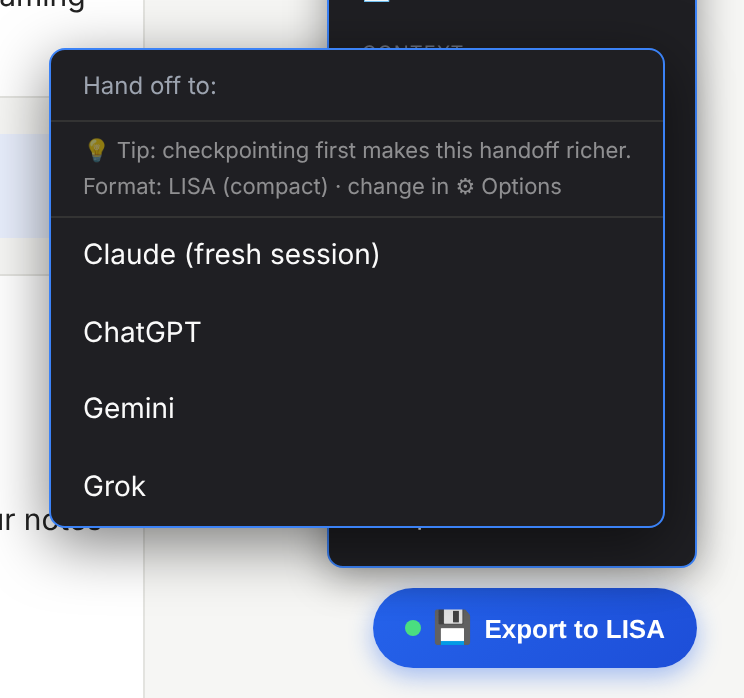
LISA opens the new tab next to yours and attaches the conversation as a file. If the site doesn't accept the file automatically, click the message box and press Ctrl+V (⌘+V on a Mac).
STEP 8Choose what to save
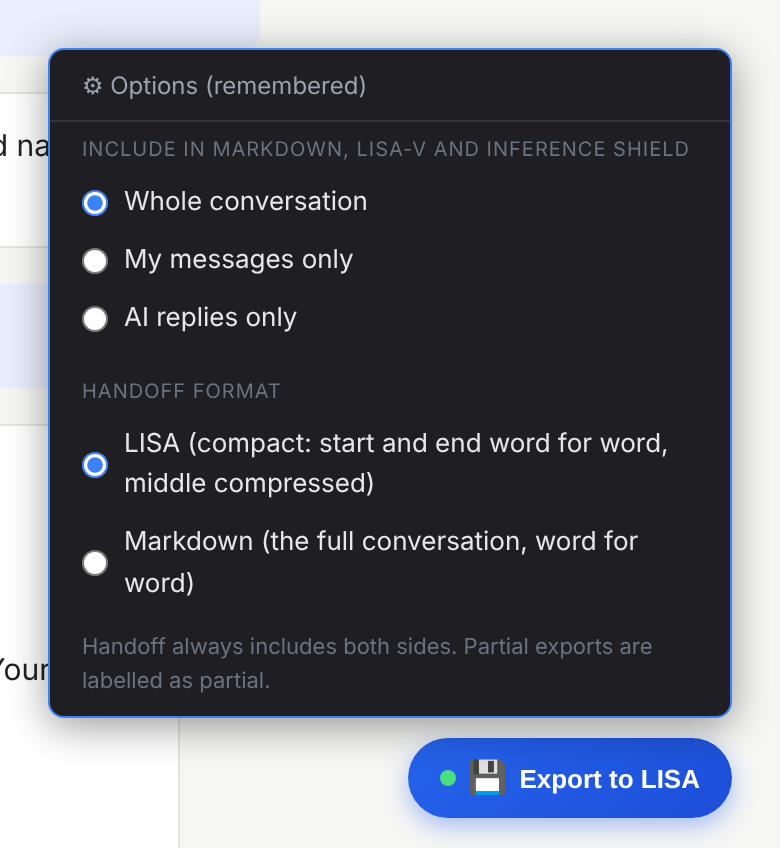
Open Advanced at the bottom of the floating button's menu (click it to unfold). ⚙ Options sets what Markdown, LISA-Verbatim and Inference Shield include: the whole conversation, only your messages, or only the AI's replies. It also sets the Handoff format: LISA (compact: the start and end word for word, the middle compressed) or Markdown (the full conversation, word for word). Options apply to the page you're on and reset when you reload it, so you never save a partial export by surprise later.
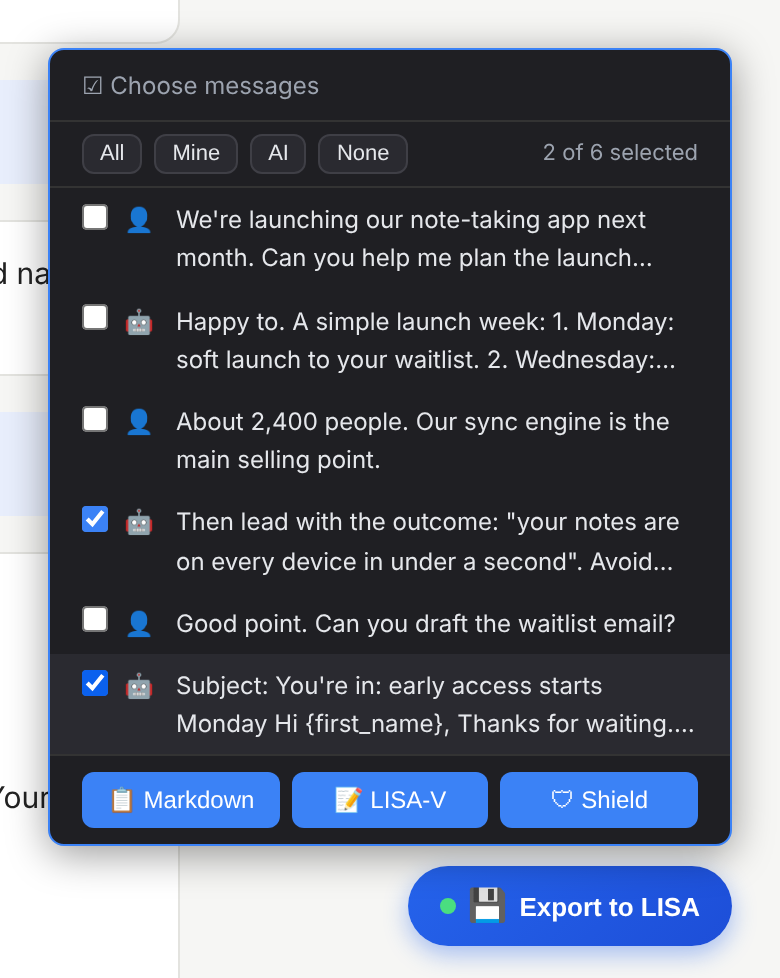
☑ Choose messages… lists the conversation so you can tick exactly the messages you want, then save them or check them with Inference Shield.
STEP 9The popup and its library
Click the LISA icon in your toolbar. The top shows your plan and credits. Export Conversation captures the current chat and lets you compress it locally or with AI.
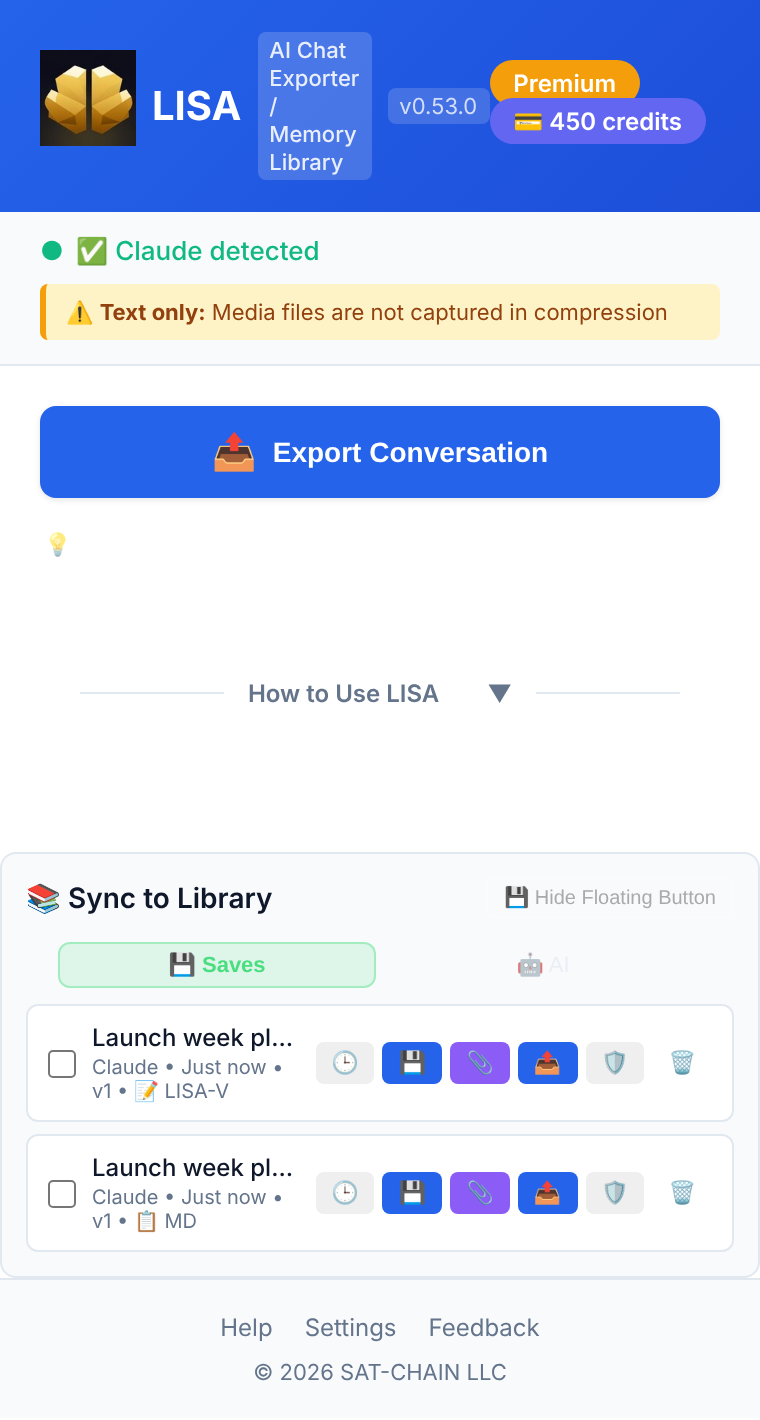
Every save goes to Sync to Library, kept in your browser. The buttons on each item:
| 🕒 | Earlier versions |
| 💾 | Download the file |
| 📎 | Attach it to the AI chat you have open |
| 📤 | Send it to your online Library in Nexus |
| 🛡️ | Check it with Inference Shield |
| 🗑️ | Delete |
Tick several items and press Inject Selected to give an AI more than one at once.
The suite
STEP 10Inference Shield
Before you publish a blog post, pitch deck or documentation written with AI, Inference Shield shows what it reveals about how your technology works, and can rewrite the risky phrases. Send text to it from the extension in three ways:
- Select text on any page, right-click, and choose Check with Inference Shield.
- Choose 🛡 Inference Shield in the floating button menu (the whole chat, or messages you pick with Choose messages).
- Press 🛡️ on an item in the popup library.
Shield opens in a new tab, signed in with your key, with the text in place. Opening it is free; nothing runs until you press Run.

STEP 11Credits and plans
One balance works everywhere. 1 credit = $0.01. Credits you buy never expire.
| What | Credits |
|---|---|
| Extension: a local save or compression | 1 |
| Extension or Nexus: an AI compression | 5 |
| Inference Shield: Quick / Deep Leak Score (per 2,500 words) | 10 / 25 |
| Inference Shield: Protect (first 2,500 words) | 150 |
| Option | What you get |
|---|---|
| Free, no sign-up | 1 Nexus compression a day with Gemini, up to 100,000 characters and 6 anchors; free daily saves in the extension |
| Credits | $1 for 100, $4 for 500, $7 for 1,000. New keys start with 50 free: 2 compressions a day with Gemini, up to 200,000 characters and 6 anchors. Once you have topped up: 5 a day with every AI, up to 12 anchors |
| Pro / Team / Enterprise | 50 / 80 / 200 compressions a day (12 / 12 / 24 anchors) plus 300 / 1,000 / 3,000 credits every month; unused credits carry over |
See Pricing to buy credits or a plan. You pay securely through Stripe and get your key by email.
PRIVACYYour data
- The extension's saves stay in your browser unless you send them to your online Library.
- Text you compress goes only to the AI provider you choose, which doesn't use API data for training.
- Your Library is stored with your key; deleting an item removes it.
- Inference Shield deletes your text after the analysis and its results after 24 hours.
Details: Privacy policy · Security.
FAQQuestions
Which format should I save in?
Markdown to read or share with people. LISA-Verbatim to continue in another AI or keep a verifiable record. A LISA token (Nexus) when you want the meaning in the smallest size.
I don't see the floating button.
Reload the chat page. If you hid it, click the LISA icon and press Show Floating Button.
The handoff didn't attach the file.
Click the message box in the new tab and press Ctrl+V (⌘+V on a Mac): LISA put the conversation on your clipboard.
I lost my license key.
Enter your email in the key panel on LISA Nexus under No key yet?: we email your existing key again. No new account is created.
Someone else may have my key.
On LISA Nexus, open the key panel and click Replace key. We email a new key to your address and the old one stops working at once. Your Library, credits and plan move to the new key. Paste the new key into the extension and Inference Shield.
Can I use Nexus on my phone?
Yes, Nexus works in any modern phone browser. The extension needs desktop Chrome (or Edge, Brave and other Chrome-based browsers).
How do I cancel a subscription?
Use the "Manage Billing" link in your Stripe receipt, or email cancellation@sat-chain.com. You keep access until the end of the period you paid for.
How do I get help?
Email contact@sat-chain.com.